Guides
How to choose and set up a monitor or television, new or used
Choose a monitor or TV by viewing distance, cable bandwidth, HDR claims and the UK energy label, then set it up and inspect a used one before you pay.
What to take away
- Cable choice limits the picture. HDMI.org describes High Speed cables as up to 10.2 Gbps (4K at 30 Hz), Premium High Speed as up to 18 Gbps (4K at 60 Hz with HDR) and Ultra High Speed as up to 48 Gbps (8K at 60 Hz and 4K at 120 Hz).
- The UK energy label runs from A to G and shows separate SDR and HDR classes. For online sales the seller must give you the label and product sheet before you buy.
- A bare "HDR" claim says little. VESA's DisplayHDR logo must carry a tier number, and local dimming is first required at the 500 tier.
- Check the weight of a display against the wall mount's rating. VESA's FDMI standard sets weight limits by screen size, for example 22.7 kg for 23 to 30.9 inch displays.
- Pixel defect rules differ by maker. Dell's pixel guidelines allow zero bright pixels on its premium panel exchange monitors but up to five on some standard ranges.
Start with the room and the distance
Measure the viewing distance, the desk depth or the wall space, and the doorway the box must pass through. Then check what the picture can deliver at that distance.
The sum below is the desk's own arithmetic, so read it as an Editorial suggestion. It assumes the eye can just separate detail of one arcminute, a common rule of thumb that varies between people. Pixel pitch is panel width divided by horizontal pixels, and the distance at which one pixel subtends one arcminute is the pitch divided by 0.000291.
| Screen | Width | Pixels across | Pixel pitch | Pixels blend beyond |
|---|---|---|---|---|
| 27-inch monitor, 1440p | 598 mm | 2,560 | 0.23 mm | about 0.8 m |
| 27-inch monitor, 4K | 598 mm | 3,840 | 0.16 mm | about 0.5 m |
| 55-inch TV, 1080p | 1,217 mm | 1,920 | 0.63 mm | about 2.2 m |
| 55-inch TV, 4K | 1,217 mm | 3,840 | 0.32 mm | about 1.1 m |
Read the last column as "the distance beyond which you are unlikely to see individual pixels". If you sit further away than that, extra resolution adds little for video. For text on a desk, you also need the interface scaling to stay readable, so open a real document at your real distance before you commit.
Match the cable and the port to the mode
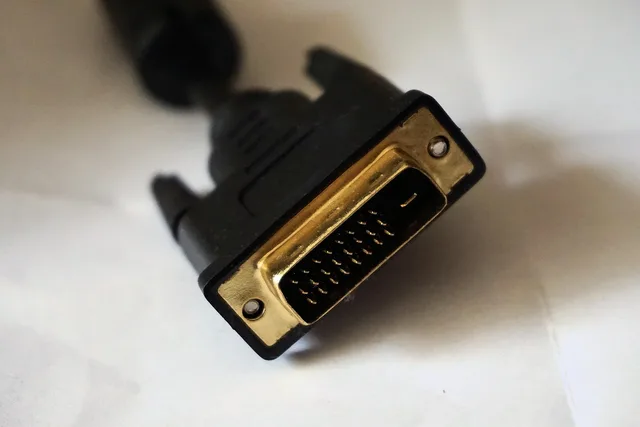
A display can only show what the cable, port and source carry. HDMI.org's cable page lists several cable types. These are four of them (it also lists an Ultra96 cable for HDMI 2.2, at up to 96 Gbps) (HDMI.org):
| Cable | Stated bandwidth | Stated use |
|---|---|---|
| Standard | not stated | 1080i or 720p |
| High Speed | up to 10.2 Gbps | 1080p and beyond, 4K at 30 Hz |
| Premium High Speed | up to 18 Gbps | 4K60, HDR |
| Ultra High Speed | up to 48 Gbps | 8K at 60 Hz, 4K at 120 Hz |
HDMI 2.1 added up to 48 Gbps, variable refresh rate, enhanced audio return channel and dynamic HDR formats (HDMI Forum). Editorial suggestion: on a TV, check the manual to see which HDMI sockets carry those features.
For DisplayPort, VESA's certified DP40 cables are rated for up to 40 Gbps and DP80 cables for up to 80 Gbps (VESA). Match the cable to the connector the monitor actually has.
Refresh rate is set on the computer as well as the display. In Windows 11, go to Settings, System, Display, Advanced display and use "Choose a refresh rate". An asterisk next to a rate means it does not suit the current resolution, and choosing it changes the resolution (Microsoft). If you plan to use a TV as a monitor, read monitor vs television for computer use.
Judge HDR by the certification, then by the room
VESA's DisplayHDR programme says the logo must always show its tier number. It also says a display without the logo may support HDR but may not look noticeably different from standard range, and that local dimming is first required at the 500 tier, so a DisplayHDR 400 screen should not be assumed to have it (DisplayHDR FAQ).
On a PC, Microsoft says to use DisplayPort rather than HDMI when the display supports HDR over DisplayPort. It also says that Windows may duplicate the desktop on an external monitor, which disables HDR, and that the "SDR content brightness" slider balances ordinary content against HDR (Microsoft). Editorial suggestion: judge a screen with a film you know and a page of text, in the room where it will live.
Burn-in is one more check. LG describes image retention as a faint ghost that usually fades, and burn-in as a form that lasts much longer. It names static channel logos, paused games and a vivid mode or very high brightness left on for long periods as causes (LG). Editorial suggestion: if the screen will show a fixed taskbar for hours, ask the maker how it handles this before buying.
Read the energy label and the repair rules
In the UK, GOV.UK says re-scaled A to G labels for electronic displays have applied at the point of sale since March 2021 (dealers had until 18 March 2021 to replace old labels), and for distance selling the label and product information sheet must be provided before you buy (GOV.UK). The label regulation, as it applies in the UK, says the label shows an SDR class and an HDR class, each with an on-mode consumption figure in kWh per 1,000 hours, plus the screen diagonal and resolution (Regulation 2019/2013). Compare the figure for the mode you will use most.
The 2021 Great Britain ecodesign regulations set minimum standards for electronic displays (Schedule 19):
- Efficiency.The maximum energy efficiency index tightened on 1 March 2023, from 0.90 to 0.75 for displays up to HD and from 1.10 to 0.90 for those above HD up to UHD.
- Standby.Off mode is limited to 0.3 W, standby to 0.5 W and networked standby to 2 W, before stated allowances.
- Spare parts.Makers must supply listed parts, such as the internal power supply and connectors, to professional repairers for seven years after the last unit is sold. The external power supply and remote control must also be available to end users.
- Repair information.Professional repairers must get access two years after a model first goes on sale.
These are Great Britain rules. Northern Ireland continues to follow EU ecodesign and energy labelling rules (GOV.UK). For what this means in practice, see right to repair and WEEE rules for UK households, and for running costs see home office energy costs and device choices.
A TV Licence is needed to watch or record live TV on any channel, on any device, and to use BBC iPlayer (GOV.UK). Editorial suggestion: read that as applying to a monitor used with a tuner or an app to watch live channels, and not by itself to a monitor that only shows a computer desktop.
Mount it and set it up
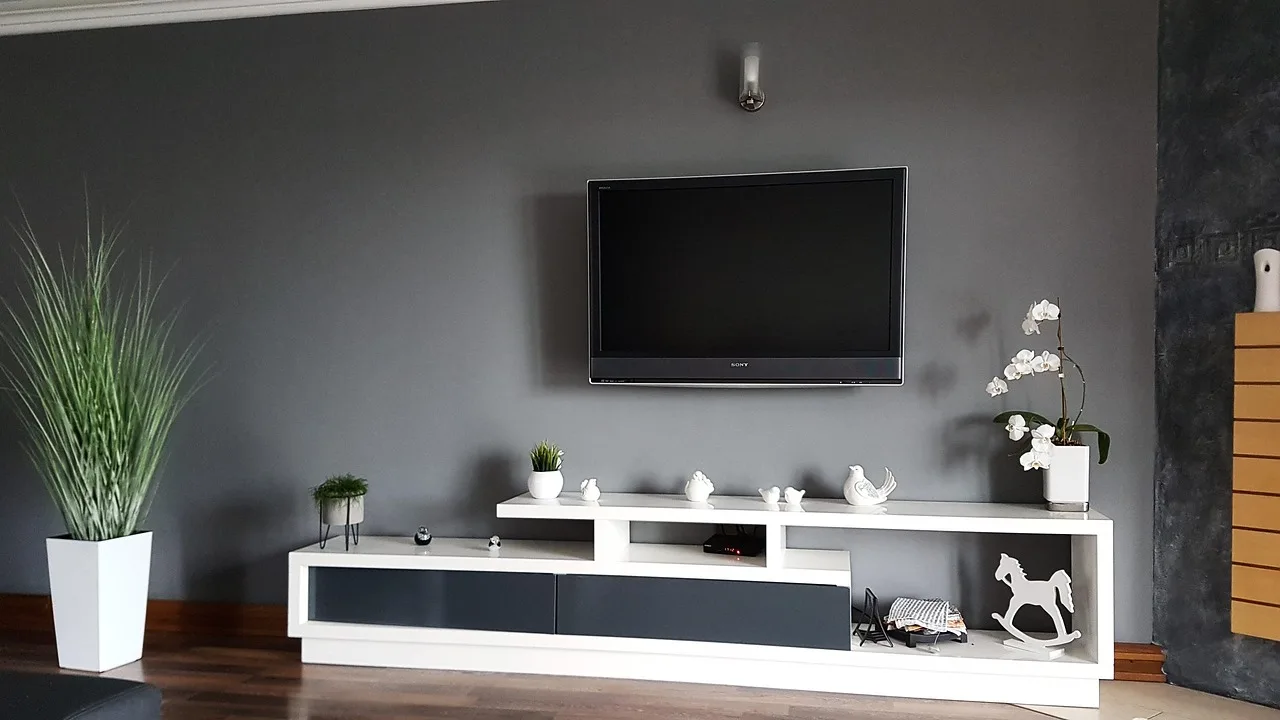
Check the display weight against the mount rating and the wall. VESA's FDMI standard covers 12 to 22.9 inch displays up to 14 kg, 23 to 30.9 inch displays up to 22.7 kg, and 31 to 90 inch displays up to 113.6 kg (VESA). Follow the maker's manual for fixings and for securing a tall unit.
Editorial suggestion for the first evening:
- Connect one source directly with one known-good cable. Add docks, receivers and switches only once that works.
- Select the native resolution and a refresh rate the source, cable and panel all support.
- Use a neutral picture mode and change one control at a time.
- Test HDR separately, with a known HDR clip and ordinary content.
- Write down the working cable, port and settings. A speaker or soundbar adds its own setup, covered in the headphone and speaker buying guide.
Do this inside your return window. If you bought from a UK trader, the Consumer Rights Act 2015 (which applies across the UK) gives a 30-day short-term right to reject faulty goods (section 22), and a fault within six months is presumed to have existed at delivery for repair and replacement claims (section 19). Citizens Advice adds a 14-day cooling-off period for goods bought online, starting the day after delivery (Citizens Advice). If a picture fault appears later, go to monitor and TV picture and signal problems.
Used monitor or television: inspection order
Steps 2, 6 and 7 are Editorial suggestions. The others cite a source or are labelled.
- Check recalls.Search the model on the GOV.UK product recalls and alerts list (GOV.UK).
- Look at the case and standunder angled light for cracks, bent frames and missing screws. Do not power up a unit with a damaged mains lead or scorched connector.
- Run the built-in test.Samsung TVs from after 2015 offer Settings, Support, Device Care, Self Diagnosis, Picture test (Samsung UK). LG webOS TVs bought in 2021 or later use All Settings, Support, Screen Self-Diagnosis (LG UK). A clean built-in test suggests the fault lies outside the panel, in the source, cable or signal.
- Warm it upfor 20 minutes (Editorial suggestion), then show full-screen white, black, red, green and blue. Look for dead or stuck pixels, bright patches and uneven black.
- Ask about pixel policy.Dell, for example, counts partial subpixels as no defect, and allows up to five bright pixels on some standard monitors while replacing premium panel exchange monitors for even one bright pixel during warranty (Dell). Pixel defects are covered only during the warranty, so a used unit may no longer have that cover.
- Test every inputyou need at the mode you need, and leave it running to find dropouts.
- Smart TVs.Make the seller sign out of accounts and reset the TV, and confirm setup starts clean.
- Rights.A trader owes you the Consumer Rights Act rules above. A private seller does not: Citizens Advice says "buyer beware" applies, the description must be accurate, and you should screenshot the listing and pay by card or PayPal rather than bank transfer (Citizens Advice, 2018). The refurbished tech guide covers business sellers.
Sources
In this guide
- Monitor vs television at a computer desk: refresh, input delay, and portsMonitor vs television comparison for desk distance, text, input delay, refresh, ports, tuners, audio, privacy, ergonomics, energy, support, and repair.
- Monitor or TV: no signal, blank screen, blur or wrong colourA symptom-led order for diagnosing a blank, blurry, flickering or wrong-colour monitor or TV, plus Freeview aerial checks and when to stop and claim under UK law.