Rules
Part of Laptop buying guide: a framework for comparing options
Laptop overheating problems: a troubleshooting guide
Laptop overheating problems call for safe checks of workload, airflow, fan behavior, updates, logs, power, and repeatable tests before repair.
What to take away
- Stop using a laptop with swelling, smoke, odor, scorching, or a dangerously hot surface.
- Warm air and fan noise under load can be normal; shutdowns and damage need investigation.
- Test workload, surface, room, power mode, and accessories under controlled conditions.
- Keep vents open and clean only with the maker's approved method.
- Use logs and diagnostics before replacing fans, paste, batteries, or boards.
Laptop overheating problems are not always a fault: processors and power components send heat through a cooling system and out of a compact case. Heat at a vent can show that the system is removing energy. The useful question is whether temperature and performance fit the maker's design under a known workload.
Stop for unsafe signs
Power down and disconnect external power if the case or trackpad is lifting, the battery appears swollen, there is smoke, a chemical or burning odor, scorching, liquid exposure, or heat severe enough to risk injury. Do not press a bulge flat or continue charging for a test.
If the device is stable but too hot to touch comfortably, stop the workload and seek maker or qualified service guidance. Preserve data only when it is safe.
Define the complaint
Separate these behaviors:
- fan runs often
- warm air exits a vent
- keyboard or bottom feels warm
- performance drops after sustained work
- application freezes or system restarts
- firmware reports a fan or thermal error
- laptop shuts down suddenly
- battery or charger becomes abnormally hot
Record model, firmware, operating system, room temperature, surface, power source, battery state, connected devices, applications, elapsed time, and any error. A video or timestamped log helps with intermittent events. The repair diagnosis guide shows how to turn that record into testable statements.
Establish a safe baseline
Place the laptop on a hard, stable surface with vents clear. Disconnect nonessential peripherals. Use the maker-supplied or confirmed-compatible charger. Restart, let background startup settle, and record idle behavior before running the exact workload.
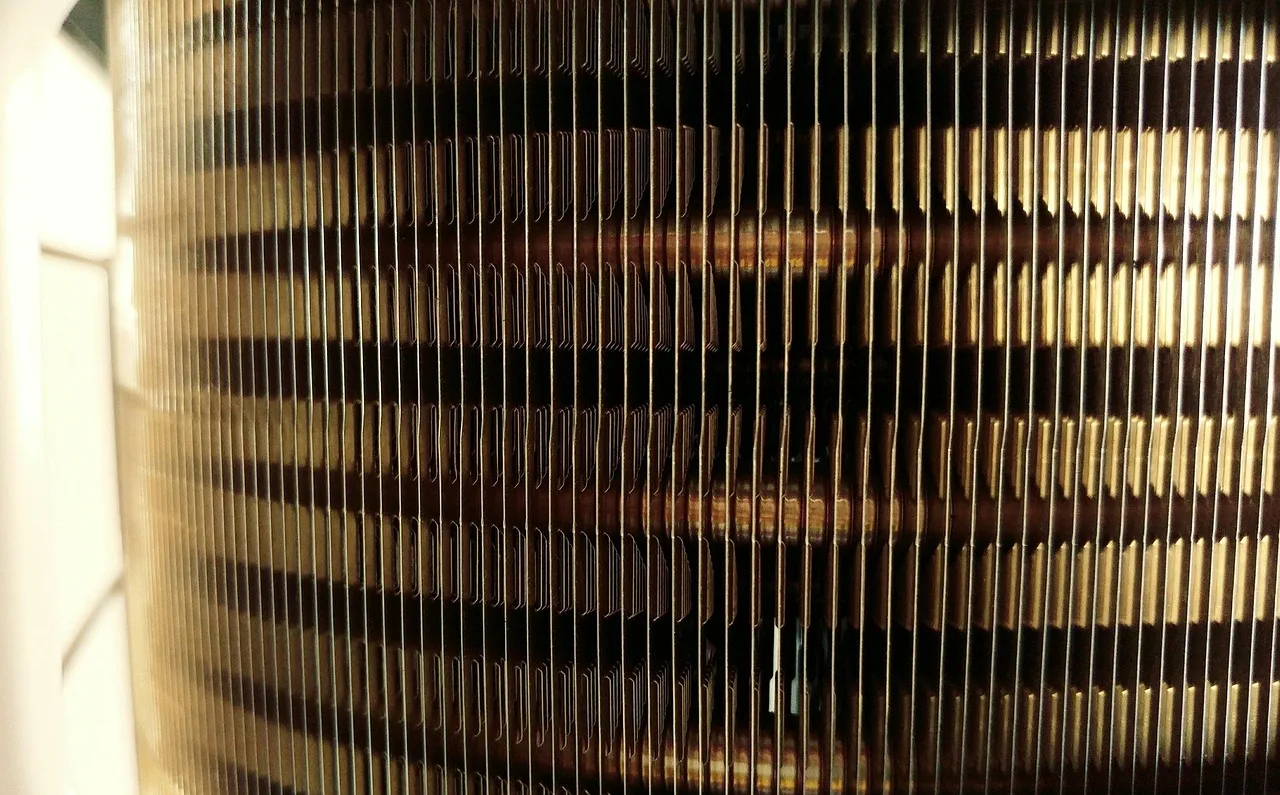
Wikipedia's computer cooling overview shows both halves of the problem: dust building up on a heatsink can push a laptop into frequent thermal shutdowns.
A processor that passes its temperature limit protects itself by dropping clock speed or switching off. Clear vents on a hard surface are the cheap end of that chain, so start there.
Do not test on bedding, carpet, paper, or a lap that blocks openings. Do not put the computer in a refrigerator or aim moisture-producing cold air at it.
Check workload before hardware
On Windows, open Task Manager; on macOS, open Activity Monitor. Record processor, graphics, memory, storage, network, and top processes at idle and during the heat event. On Windows, HWiNFO, HWMonitor, or Core Temp can also display processor temperature sensors; sensor labels and availability vary. Updates, indexing, backups, malware scans, browser tabs, video calls, games, and rendering can create sustained load.
End only work you recognize and can safely stop. Let legitimate updates finish. Compare performance and fan behavior after the workload ends. If one application repeatedly causes extreme load, update it, review its configuration, and test a known alternative where possible.
Inspect airflow and fan behavior
With power off and unplugged, inspect external vents for packed debris and damage. Follow the maker's cleaning method first. If it permits compressed air, use short bursts with the can upright, avoid letting the fan spin, and stop if debris moves farther inside; poor technique can overspeed a fan or spray liquid propellant. Vent cleaning sits at the safe end of the DIY, independent, and manufacturer repair comparison; deeper cooling work does not.
Listen for grinding, scraping, repeated start-stop behavior, or no fan under a known high load. Do not insert objects through vents. Use the applicable maker's diagnostic: Dell ePSA, Lenovo Vantage hardware scan, or HP PC Hardware Diagnostics. A reported fan failure, debris-packed heatsink fins, and a damaged heat pipe point to different faults; check the exact model's service manual for the matching repair. A silent fan can be normal at low temperature, so use the diagnostic instead of forcing it to spin. The same listening test belongs in the used laptop inspection checklist before any second-hand purchase.
Check updates and power settings
Install applicable firmware, operating-system, graphics, chipset, and thermal-control updates from the maker's approved source. Read firmware-update power requirements first. Do not interrupt the process.
On Windows, open Settings > System > Power & battery and compare Balanced with Best power efficiency; available choices vary by device and Windows version. On supported Macs, compare Low Power Mode with the usual setting. Also compare any maker-recommended thermal profiles. Maximum-performance modes may increase power, heat, and noise. An unusually low performance mode can hide a cooling fault without fixing it.
Use diagnostics and logs
Run the applicable maker's fan and hardware test, such as Dell ePSA, Lenovo Vantage hardware scan, or HP PC Hardware Diagnostics. Record readings, codes, shutdown times, and firmware events; on Windows, check Event Viewer around the event time, and on macOS, check Console. A passing short test may not reproduce a long workload, but it narrows the evidence. Compare any reported fault with the service information for the exact laptop model.
Wikipedia's page on thermal design power explains TDP as a cooling-design measure, not a safe-temperature threshold. For an Intel processor, check its Tjunction specification in Intel ARK; for an AMD Ryzen processor, check its model specification for the maximum operating temperature. Laptop limits and sensor readings vary by model, so there is no single safe temperature for every laptop; follow the laptop maker's guidance where available. A thin chassis with a small heat budget can run warm and lean on its fan under heavy processor work without being defective.
What matters is whether the logs show shutdowns, thermal errors, or performance below the design.
Decide on service
Seek repair when the fan fails a test, noise is mechanical, shutdowns or logged thermal events persist, vents or heat pipes are damaged, the battery is suspect, or safe cleaning and supported updates do not restore normal operation. If the quote lands near the machine's value, work the upgrade, repair, or replace decision before approving.
Ask the technician to reproduce the original workload and state what failed. "Clean and repaste" is a proposed task, not a diagnosis. Request before-and-after test results, part details, complete price, data terms, and repair warranty. The repair quote problems guide covers what to do when those answers stay vague.
Verify the result
Repeat the same workload on the same hard surface, room conditions, power source, and settings. Compare elapsed time, fan behavior, performance, logs, and shutdowns. Check battery, charging, sleep, wake, keyboard, trackpad, and ports after disassembly.
Common questions
Is a loud fan proof that the laptop is overheating?
No. It may reflect normal cooling under load. Check temperature behavior, performance, errors, and the maker's diagnostics.
Should I replace thermal paste on a schedule?
Not without model guidance and evidence. For an advanced repaste, follow the exact model's service manual: power down and unplug, disconnect the internal battery as directed, remove the cooling assembly in the specified order, clean old paste from the mating surfaces with isopropyl alcohol, apply a small amount of suitable replacement paste, and reinstall the assembly in the specified order. Disassembly has risks, and paste is only one part of the cooling path.
Does a cooling pad fix a failed fan?
No. It may change external airflow, but it does not repair a failed internal component.
Can I keep working after a thermal shutdown?
Repeatedly restarting can risk data and hardware. Back up if safe, record the event, and diagnose the cause.