Features
Part of Laptop buying guide: a framework for comparing options
7 things nobody tells you about slow laptop diagnosis
Seven non-obvious insights into slow laptop diagnosis, from startup load and drive headroom to memory pressure and the upgrades that rarely fix the real limit.
What to take away
- Slow is not a fault. It is a task, a stopwatch reading and a system state, and you need all three.
- A nearly full solid-state drive throttles writes long before it fails, so free space is a performance figure.
- Startup load and memory pressure feel identical from the keyboard. Only counters separate them.
- Make one reversible change, retest the same workload, and write the number down.
- An upgrade earns its place only when the measurement shows the limit it removes.
Leah's five-year-old laptop takes minutes to be usable after sign-in. Video calls stutter with a large spreadsheet open. A shop quotes more memory and a new solid-state drive.
She measures first with tools Windows already carries. The intermittent laptop failure case applies the same discipline to a fault that comes and goes.
Measure the same workload twice
- Restart and start a stopwatch at the sign-in keypress. Stop it when a desktop click answers within a second.
- Open Task Manager, Performance tab, and click the disk row for active time.
- Type resmon in the search box. Watch disk queue length and hard faults per second.
- Repeat the sign-in and the same spreadsheet three times over ten minutes, and write the numbers down.
1. Free space is a speed setting
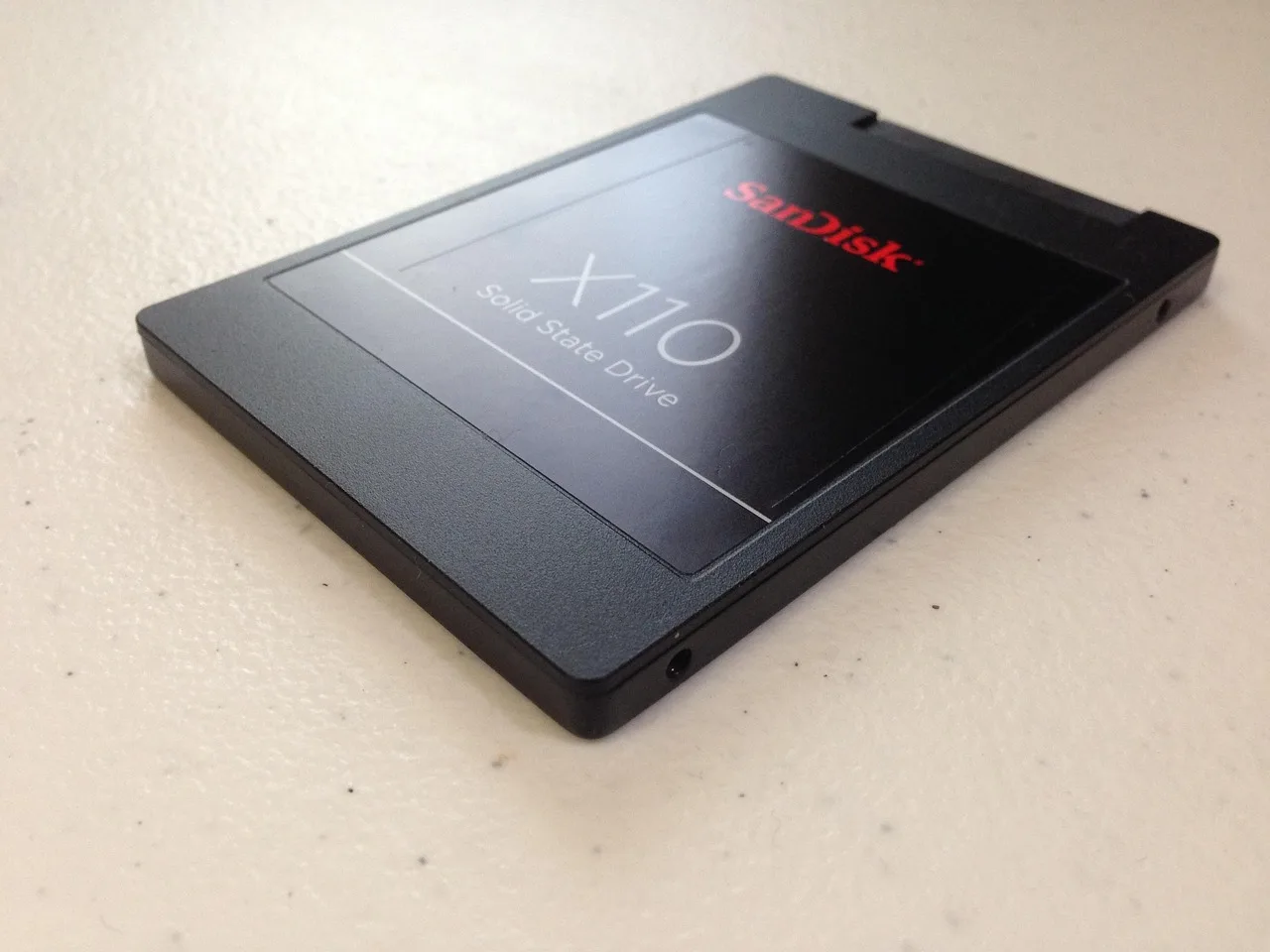
Leah's 256 GB drive has 7 GB free. Wikipedia's article on the solid-state drive notes these drives slow as they approach full capacity, because the controller has fewer empty blocks to write into and must erase before each write.
Keep 10 to 20 percent of a solid-state drive unused. On a 256 GB drive that is 26 to 51 GB.
CrystalDiskInfo reads S.M.A.R.T. wear level and reallocated sector counts.
2. Startup load hides behind a ready desktop
Press Ctrl+Shift+Esc. Wikipedia describes a task manager as a monitor that lists running processes with the processor and memory each one uses.
For five minutes after sign-in, disk sits near its limit while cloud sync, a game launcher, two chat tools and a printer utility start. The desktop appears before the machine is ready.
Task Manager's Startup tab rates each app's startup impact. Resource Monitor adds per-process disk activity and disk queue length.
3. Memory pressure and storage pressure look alike
Both produce stutter. Only the numbers separate them.
During the spreadsheet and the call, memory climbs to 88 percent. Processor use stays moderate and disk spikes. Memory never reaches its ceiling, so the evidence points at startup and storage.
Resource Monitor's Memory tab reports hard faults per second, and sustained hard faults point at memory rather than disk. Windows Memory Diagnostic runs at the next restart.
4. The first fix should be reversible
Leah disables automatic startup only for programs she recognizes and does not need at sign-in. Security, touchpad, audio and work-management tools stay on.
Sign-in to a usable desktop falls from 4 minutes 40 seconds to 2 minutes 5 seconds. The spreadsheet still takes 34 seconds, so startup load was only part of the problem.
Heat is the other cause that survives a startup trim. The laptop overheating problems guide covers throttling, dust and fan behavior when a machine runs hot as well as slow.
5. Cleanup needs judgment, not a button
Storage Sense can clear temporary files and empty the Recycle Bin on a schedule. Category review returned the 54 GB here:
Cleanup needs judgment
- obsolete installers in Downloads
- finished video projects, moved to backed-up archive storage
- two unused games, uninstalled
Free space rises from 7 GB to 61 GB. She installs pending updates and restarts.
Cleanup needs judgment
| Test | Baseline | After startup | After cleanup |
|---|---|---|---|
| Sign-in to usable desktop | 4:40 | 2:05 | 1:22 |
| Open spreadsheet | 0:38 | 0:34 | 0:18 |
| Call interruptions in 10 min | 2 | 1 | 0 |
Memory peaks at 86 percent with no sustained paging. Disk no longer stays saturated, and the hardware and storage-health tests pass.
6. The advertised upgrade usually removes a limit you do not have
The service manual shows one free memory slot and replaceable storage. Her measured workload does not need more memory.
The advertised upgrade
- memory part and installation
- $95
- larger storage, cloning and installation
- $210
- replacement laptop and dock
- $860
She declines all three. The laptop upgrade planner covers part matching and safe installation when a measured need arrives.
7. A slow laptop is evidence for a later decision
She sets a monthly storage review and records the support end date. Memory and storage get revisited only when measured use reaches her limits.
When the laptop needs a technician, not a tune-up
Storage errors, unsafe heat, power faults, repeated crashes and data-recovery concerns are not cleanup jobs. Stop tuning and name a repairer.
Do not open a plugged-in laptop or a lithium-battery device beyond safe isolation. The Consumer Product Safety Commission handles unsafe products and recalls in the United States.
The FTC's guidance on federal warranty law explains when a manufacturer may require specific parts or service before honoring a claim.
Consumer disputes go to a state attorney general's consumer protection office, or a provincial consumer affairs office in Canada.
Common questions
Why not install more memory straight away?
Memory use never reached its ceiling, while startup and storage gave safer first tests. The $95 would have removed no measured limit.
Is deleting temporary files always safe?
Review each category and decide what its loss would cost you. Leave unknown data and previous-system folders alone.
When should a slow laptop go to a technician?
Repeated crashes, hardware errors, unsafe heat, power faults or recovery concerns, or any test you cannot run safely. Ask for a written diagnosis and price before work starts. If the quote approaches replacement cost, the upgrade, repair or replace comparison settles it.